Windows 10 guest on QEMU
Posted on Fri 22 January 2021 in Virtual Machine • 2 min read •
I use Linux (Debian) as my daily driver. However, for some softwares only available on the Windows platform, I use Windows 10 VM in QEMU (managed using virt-manager). There is a myth about the Windows 10 guest under QEMU that they are slow compared to other virtualization techniques/softwares (VirtualBox, VMWare, and others). Surely, the default values in virt-manager do not result in the most performant Windows virtual machine out of box. Still, with the following tips one can get a very performant virtual machine setup (with low computational load additionally):
- Please ensure that the disk file to be created for the virtual machine is not on a
BTRFSpartition. Furthermore, at the last step of new virtual machine wizard invirt-manager, click Customize configuration before install.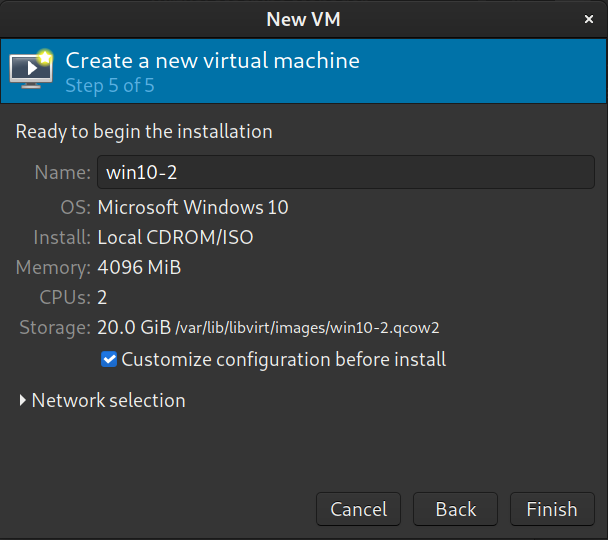
- In the next dialog box, change the disk bus of
SATA Disk 1and device model of Network Interface Card (NIC) toVirtIO.Windowsdo not haveVirtIOdrivers, so attach a newSATA CDROMwith the latestVirtIOiso file downloaded from virtio-archive. At this stage, please ensure video setting is QXL. After doing all these setting, start the installation. During installation,Windowswill notify about missing disk, which can be troubleshot by navigating to the appropriate disk driver file inviostorfolder in theVirtIOdriver iso.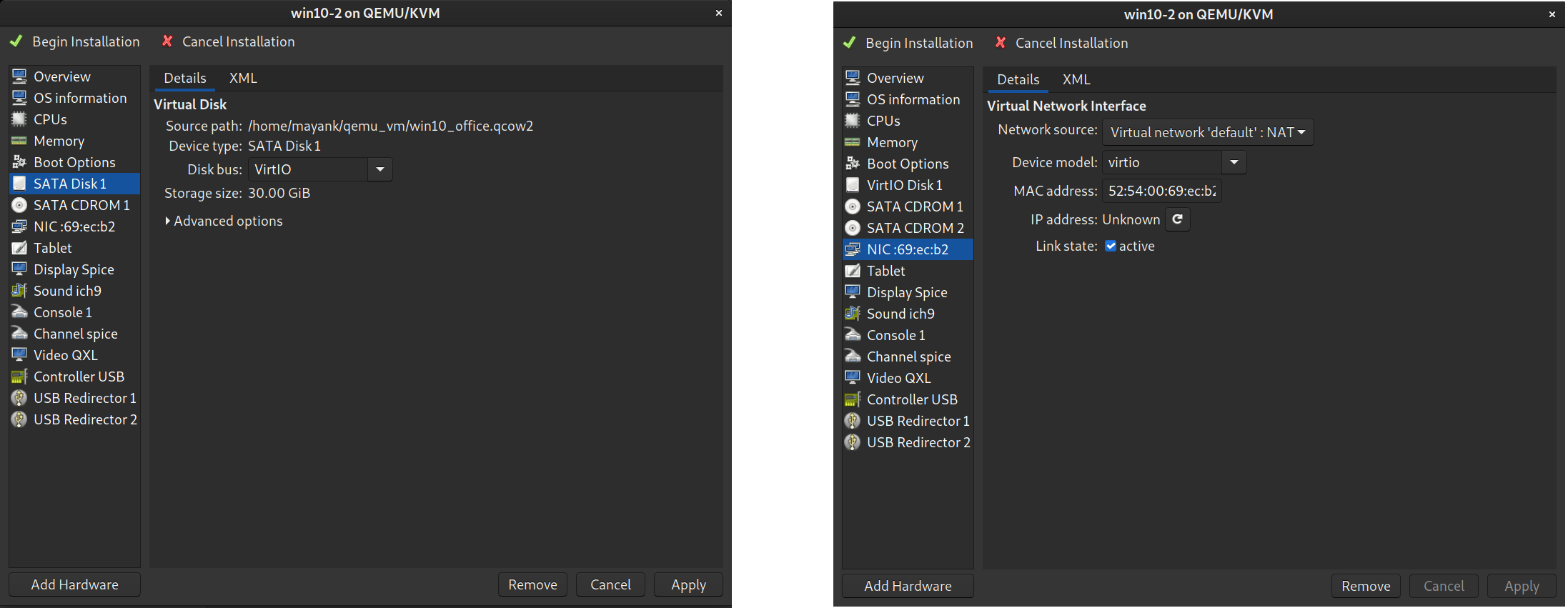
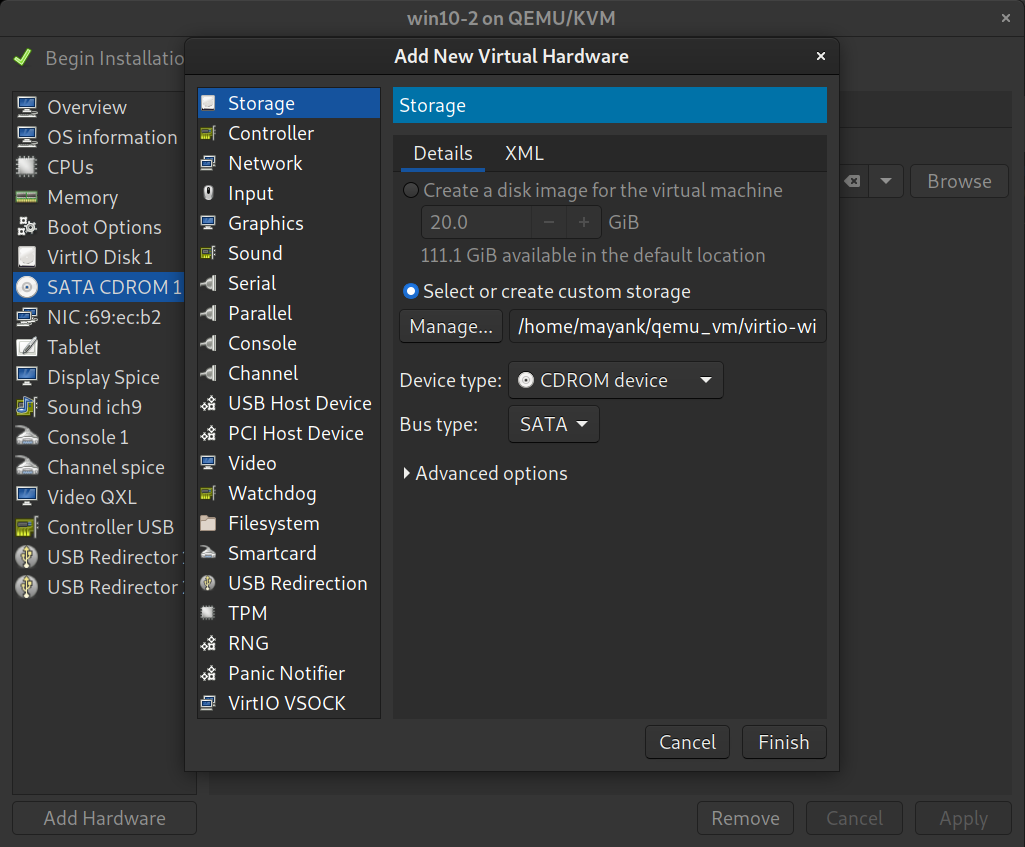
- After installation, install additional drivers from
VirtIOdriver disk. Additionally, install otherSPICEdrivers, speciallyspice-guest-toolsandSpice WEBDAV Daemon. - Debloat it with Windows 10 Debloater and enhance your privacy with O&O ShutUp10. Please ensure that before running
Windows10Debloater, execution policy inPowershell(Administrator) is unrestrictive (Set-ExecutionPolicy Unrestricted). Don’t forget to change the execution policy afterward (Set-ExecutionPolicy restricted). - Additional Tip: For sharing files from Linux host, you have two options a) by USB redirection of attached pen drive b) by WebDAV. For using WebDAV,
Spice WebDAV Daemonshould be installed in Windows guest. Add a new channel hardware with target nameorg.spice-space.webdav.0. Start the Windows guest and connect it withremote-viewer(remote-viewer spice://127.0.0.1:5900) and then useFile > Preferencesto select the folder to be shared. If this does not work, ensure that on the host machine (Linux), the user is a member oflibvirtor other appropriate groups (sudo usermod -a -G libvirt $USER; you may need to restart linux host), and on the guest virtual machine (Windows),Spice WebDAVservice is running.